
The short answer: yes, you can create a Discord permanent invite link that never expires. Open your server, click Invite People, open Edit invite link, set Expire After to Never and Max Uses to No limit, then generate the link. The whole thing takes less than a minute. This Discord permanent invite link guide walks you through every step on desktop and mobile, explains what each setting actually does, and shows you how to fix a permanent invite link that stopped working.
Last updated: October 2026. Steps verified against the current Discord app.
Also Read

Contents In This Article
- What Is a Discord Permanent Invite Link?
- How to Create a Discord Permanent Invite Link on Desktop
- How to Create One on Mobile (Android and iPhone)
- Expire After Setting Explained
- Max Uses Setting Explained
- Why Your Permanent Invite Link Stopped Working
- Admin Tips for Managing Invite Links
- Frequently Asked Questions
- Conclusion
What Is a Discord Permanent Invite Link?
A Discord permanent invite link is simply a normal server invite with its expiry turned off. By default, every invite link Discord generates expires after 7 days. That default catches a lot of people off guard. You share a link in a YouTube description or on your website, and a week later new visitors start seeing “Invite Invalid” or “This invite has expired.” Understanding how a Discord permanent invite link differs from a regular one saves you from that surprise.
When you change the Expire After setting to Never and set Max Uses to No limit, the invite code stays valid indefinitely. Anyone with the link can join your server months or even years later, as long as the invite itself is not deleted and your server has room for new members.
One important nuance: “permanent” means the link has no expiry date. It does not mean the link is indestructible. A server admin can still delete it from Server Settings at any time, and Discord can invalidate invites if a server is removed. So treat a Discord permanent invite link as long-lived, not literally forever.
How to Create a Discord Permanent Invite Link on Desktop
Follow these steps in the Discord desktop app or Discord in your web browser. The menus are identical on both.
- Open your server. Click the server icon in the left sidebar to open the server you own or moderate. You need the Create Invite permission, which server owners and most admins have by default.
- Click the server name. At the top-left corner of the server window, click the server name to open the dropdown menu.
- Select “Invite People.” This opens the invite panel with a freshly generated link.
- Click “Edit invite link.” This is the small text link below the invite URL. Do not just copy the default link yet, because it uses the 7-day default expiry. Opening the edit screen is the step most people skip.
- Set “Expire After” to “Never.” In the dropdown, scroll past 30 minutes, 1 hour, 6 hours, 12 hours, 1 day, and 7 days, and select Never.
- Set “Max number of uses” to “No limit.” The default may cap the link at a fixed number of joins. Change it to No limit so the link never runs out.
- Click “Generate a New Link.” Discord creates a fresh invite code with your chosen settings.
- Copy and share. Use the Copy button next to the new link. You now have a Discord permanent invite link.
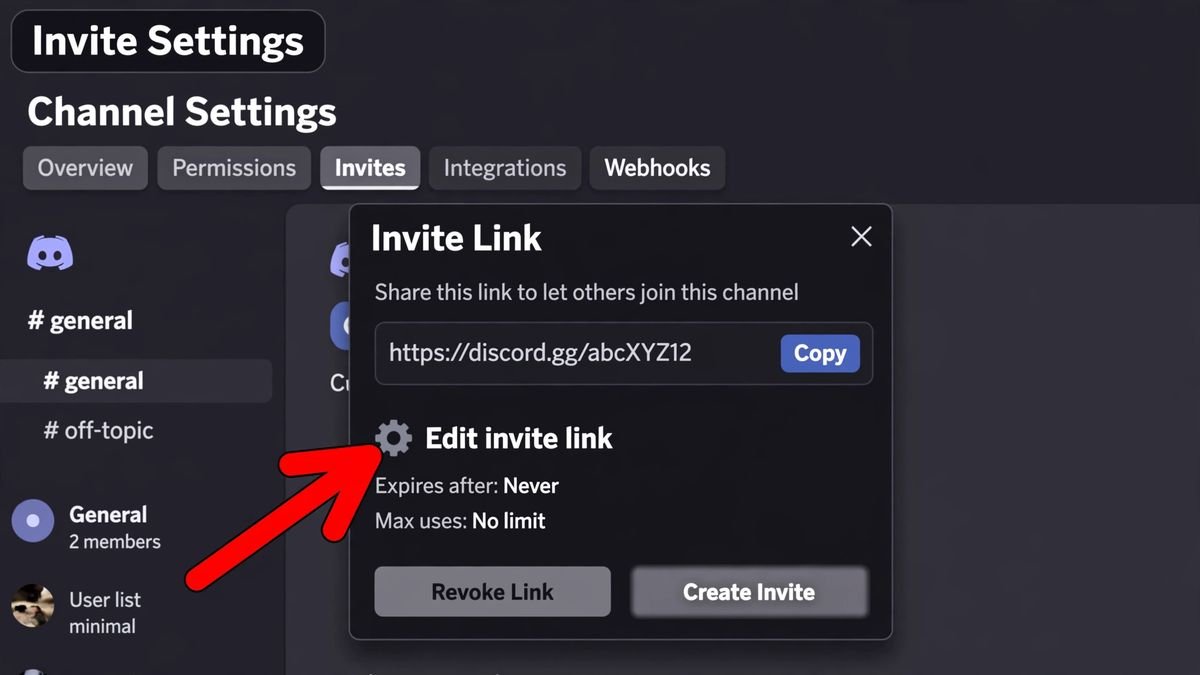
Quick check: before you share it anywhere important, paste the link into a private browser window where you are logged out of Discord. If you see your server’s join page with the correct server name, the link works.
How to Create One on Mobile (Android and iPhone)
The Discord mobile app hides the expiry settings one tap deeper than desktop, but the result is the same.
- Open the Discord app and go to the server where you want to create the invite.
- Tap the server name at the top of the screen to open the server menu.
- Tap “Invite.” You will see the invite panel with a default link.
- Tap the settings gear icon next to the invite code. This opens the invite settings.
- Set “Expire After” to “Never.” On some versions of the app this option sits behind a small dropdown, so look carefully.
- Set “Max Uses” to the infinity symbol. The mobile app shows this as ∞ instead of the words “No limit.”
- Tap “Save” or “Create Link,” then copy your new Discord permanent invite link.
Note: on very old app versions the “Never” option may not appear. If you cannot find it, update Discord from the Play Store or App Store and try again.
Expire After Setting Explained
Discord gives you seven choices for how long an invite lasts. Here is what each one means in practice.
| Setting | Best for |
|---|---|
| 30 minutes | One-time event entry, live stream raids |
| 1 hour | Short gaming sessions with friends |
| 6 hours | Evening events, watch parties |
| 12 hours | Day-long community events |
| 1 day | Weekend tournaments |
| 7 days (default) | Casual sharing, the option Discord picks for you |
| Never | Website links, YouTube descriptions, anything long-term |
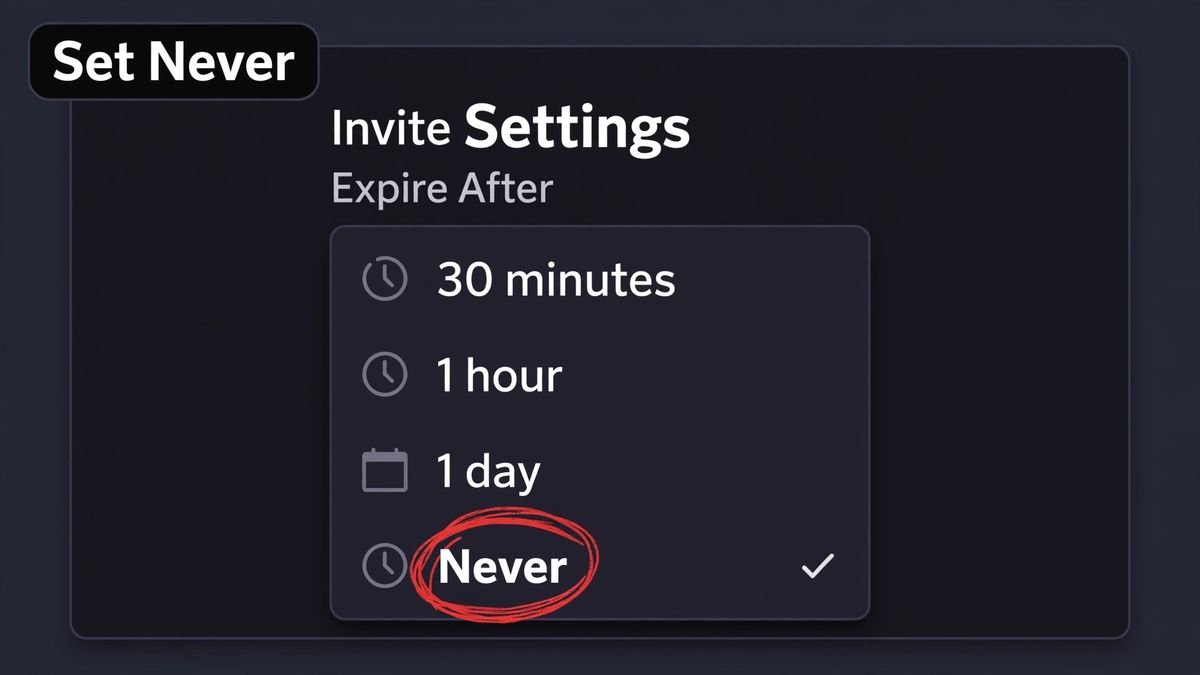
The rule of thumb is simple. If the link will live somewhere you rarely update, like a website footer or a video description, always pick Never. If you are inviting a specific group of people right now, a shorter expiry is actually safer because it limits who can wander in later.
Max Uses Setting Explained
Expiry is only half the story. Discord also lets you cap how many people can join through one link. The options are 1, 5, 10, 25, 50, 100, and No limit.
A true Discord permanent invite link needs No limit here. It is a common mistake to set expiry to Never but leave Max Uses at 25. The link then dies after the 25th person joins, and the admin is confused because “it was supposed to never expire.”
When would you want a use cap? When you are running something with limited seats, like a 10-person game night or a small study group. For a public community link, always choose No limit.
Why Your Permanent Invite Link Stopped Working
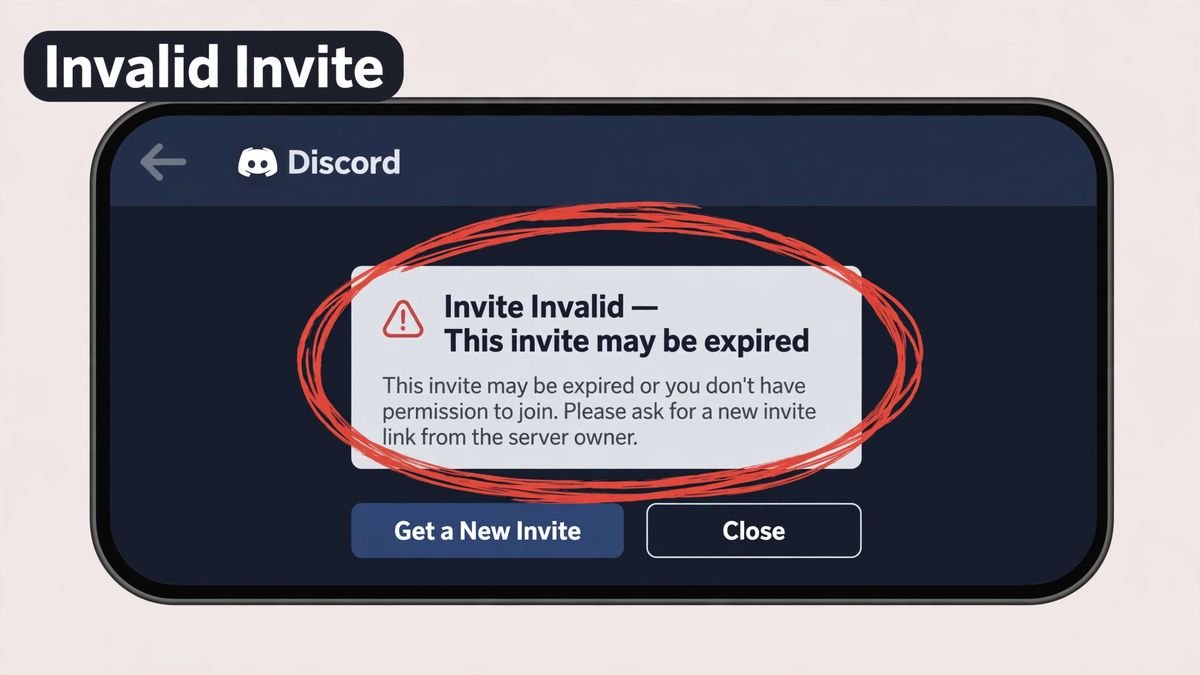
Even a correctly created Discord permanent invite link can break. Here are the reasons, in the order you should check them when your Discord permanent invite link stops working.
1. The invite was deleted
Any admin with invite permissions can delete invites from Server Settings > Invites. Once deleted, an invite code is gone for good. Discord support cannot bring it back, and you cannot recreate the same code. The fix is to generate a brand-new link.
2. The server hit its member limit
Servers have a maximum member count based on their boost level. If your server is full, every invite link stops working for new joins until members leave or the server is boosted. Check Server Settings > Overview to see your current limit.
3. The person is banned
A banned user sees an invalid-invite style error even when the link is fine for everyone else. If only one person reports the problem, ask an admin to check the ban list.
4. Verification level is blocking new joins
High verification levels can stop brand-new Discord accounts from joining. As a test, an admin can temporarily lower the verification level under Server Settings > Moderation, have the person try again, then raise it back.
5. The user hit Discord’s server cap
A Discord account can join a maximum of 100 servers, or 200 with Nitro. Someone at the cap cannot accept any invite until they leave a server. This one is easy to miss because the error message is not very clear.
6. The code was copied wrong
Discord invite codes are case-sensitive. A single changed letter breaks the code. Always copy the full URL rather than retyping it, and strip any punctuation that got copied accidentally from a sentence.
Admin Tips for Managing Invite Links
Creating the link is the easy part. Managing your Discord permanent invite link well is what separates a tidy server from a chaotic one.
- Use one invite per source. Create a separate Discord permanent invite link for your website, your YouTube channel, and your Twitter bio. Discord shows you how many people joined through each link, so you will know which source actually sends members.
- Pause invites instead of deleting them. Server Settings lets you pause all invites at once during a raid or spam wave. Paused invites can be resumed later, while deleted ones are gone forever.
- Consider a vanity URL. Boosted servers (Level 3) can claim a custom
discord.gg/yournamelink. It is easier to remember and looks more professional than a random code. - Rotate public links once in a while. Even a permanent link benefits from an occasional refresh. Old links end up on random aggregator sites, and rotating keeps your member flow coming from sources you control.
- Never hardcode raw invite codes into evergreen articles. If you run a website, link to your own page that you can update, rather than pasting a
discord.ggcode directly into content you rarely touch. When a link dies, you update one page instead of hunting through old posts.
Frequently Asked Questions
Do Discord permanent invite links really never expire?
They have no expiry date, which is what “permanent” means here. They still stop working if an admin deletes them, if the server is deleted, or if the server reaches its member limit. Think of them as long-lived rather than immortal.
Can I turn an old invite into a permanent one?
No. Expiry settings are locked in when the invite is created. To get a permanent link you must generate a new invite with Expire After set to Never. Edit the old link’s settings all you want, the original code keeps its original expiry.
Why does my “never expire” link show as invalid?
Run through the troubleshooting list above in order: check whether the invite was deleted in Server Settings, confirm the server is not full, and verify the person is not banned and has not hit the 100-server cap. Nine times out of ten, one of these is the cause.
How many permanent invites can I create?
Discord does not publish a hard cap on the number of active invites, but each server’s Invites page can get cluttered fast. Best practice is to keep a small set of purposeful links, one per source, and delete the experiments you no longer need.
Is it safe to share a permanent invite link publicly?
It depends on your moderation. A public permanent link means anyone can join at any time, so set a sensible verification level, keep moderation bots active, and consider pausing invites during attacks. For private groups, use short-expiry links instead.
Conclusion
A Discord permanent invite link takes under a minute to create: Invite People, Edit invite link, Expire After to Never, Max Uses to No limit, generate, and share. The settings are simple, but the two mistakes that break most links are skipping the edit screen and forgetting the Max Uses cap. Get those two right, test the link in a logged-out browser window, and your invite will keep working for as long as your server needs it.
Running a community beyond Discord too? Check our active WhatsApp group links and browse the latest guides for more community tips.
For Discord’s own documentation, see Discord’s Invites 101 guide and their invalid invite help article.